Monday, May 1, 2017

Uploading XML File to SAP ABAP Internal Table

In the previous post I have share exporting or downloading SAP ABAP Internal Table to XML File, but how about the vice versa? Hence, i will explain it as well in 3 similar simple stages:

  1. Prepare your XML File
    For this example, i will use the following XML
  2. Create Transformation:
    
    <?xml version="1.0" encoding="utf-8"?>
    <ROOT>
    <purchase_doc>
    <purchase_no>6000000025</purchase_no>
    <item_no>00010</item_no>
    <changed_on>2015-02-05</changed_on'>
    <material_no>100-100</material_no>
    <stor_loc/>
    </purchase_doc>
    <purchase_doc>
    <purchase_no>6000000026</purchase_no>
    <item_no>00010</item_no>
    <changed_on>2015-02-05</changed_on>
    <material_no>100-100</material_no>
    <stor_loc/>
    </purchase_doc>
    </ROOT>


    1. Go to tcode STRANS or XLST_TOOL
    2. Create an X XSLT Program Transformation
    3. Copy and Modify the following source code as template
    4. <xsl:transform xmlns:xsl="http://www.w3.org/1999/XSL/Transform" xmlns:sap="http://www.sap.com/sapxsl" version="1.0">
        <xsl:output encoding="UTF-8indent="nomethod="xml" version="1.0"/>
        <xsl:strip-space elements="*"/>

        <!-- custom -->
        <xsl:template match="/">
          <asx:abap xmlns:asx="http://www.sap.com/abapxml" version="1.0">
            <asx:values>
              <IEKPO>
                <xsl:apply-templates select="//<purchase_doc>"/>
              </IEKPO>
            </asx:values>
          </asx:abap>
        </xsl:template>

        <xsl:template match="<purchase_doc>">
          <item>
            <EBELN>
              <xsl:value-of select="<purchase_no>"/>
            </EBELN>
            <EBELP>
              <xsl:value-of select="<item_on>"/>
            </EBELP>
            <AEDAT>
              <xsl:value-of select="<changed_on>"/>
            </AEDAT>
            <MATNR>
              <xsl:value-of select="<material_no>"/>
            </MATNR>
            <LGORT>
              <xsl:value-of select="<stor_loc>"/>
            </LGORT>
          </item>
        </xsl:template>
        <!--End Custom-->

      </xsl:transform>

  3. Complete your Program

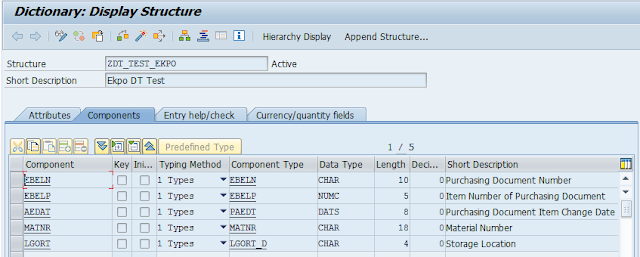
    1. Create a Data Type/Structure/Table Type based on your XML File data
    2. Create the internal table in your ABAP Report
      DATA: it_out TYPE STANDARD TABLE OF <YOUR_DATA_TYPE>.
            wa_out TYPE <YOUR_DATA_TYPE>.
    3. Insert, modify and perform the following FORM.
    form F_XML_IMPORT .
    * Table for the XML content
    DATA: it_xml       TYPE STANDARD TABLE OF char2048.
    
    
    DATA: it_result_xml TYPE abap_trans_resbind_tab,
          wa_result_xml TYPE abap_trans_resbind.
    
    DATA: gs_rif_ex     TYPE REF TO cx_root,
          gs_var_text   TYPE string.
    
    * Set XML File Location
    DATA p_file_name type string.
    p_file_name = "Your_XML_File_Location".
    
    * Get the XML file
    CALL METHOD cl_gui_frontend_services=>gui_upload
      EXPORTING
        filename                = p_file_name
      CHANGING
        data_tab                = it_xml
      EXCEPTIONS
        file_open_error         = 1
        file_read_error         = 2
        no_batch                = 3
        gui_refuse_filetransfer = 4
        invalid_type            = 5
        no_authority            = 6
        unknown_error           = 7
        bad_data_format         = 8
        header_not_allowed      = 9
        separator_not_allowed   = 10
        header_too_long         = 11
        unknown_dp_error        = 12
        access_denied           = 13
        dp_out_of_memory        = 14
        disk_full               = 15
        dp_timeout              = 16
        not_supported_by_gui    = 17
        error_no_gui            = 18
        OTHERS                  = 19.
    
    IF sy-subrc <> 0.
      MESSAGE ID sy-msgid TYPE sy-msgty NUMBER sy-msgno
              WITH sy-msgv1 sy-msgv2 sy-msgv3 sy-msgv4.
    ENDIF.
    
    * Fill the result table with a reference to the data table.
    * Within the XSLT stylesheet, the data table can be accessed with
    * "IPERSON".
    
    GET REFERENCE OF it_out INTO wa_result_xml-value.
    wa_result_xml-name = 'IEKPO'.
    APPEND wa_result_xml TO it_result_xml.
    
    * Perform the XSLT stylesheet
    TRY.
        CALL TRANSFORMATION <YOUR_TRANSFORMATION_NAME>
        SOURCE XML it_xml
        RESULT (it_result_xml).
    
      CATCH cx_root INTO gs_rif_ex.
    
        gs_var_text = gs_rif_ex->get_text( ).
        MESSAGE gs_var_text TYPE 'E'.
    
    ENDTRY.
    endform.                    " F_XML_IMPORT


Thursday, April 27, 2017

Export / Download SAP ABAP Internal Table to XML

Hello, in this tutorial I will share on of way to export or download your internal table into XML file by the help of XML Transformations. There are 3 stages in the procedure which are:

  1. Create Table Type:
    1. Go to SE11.
    2. Create a structure of your internal table
    3. Create a table type based on the structure
    4.  Make Sure to save and activate them
  2. Create Transformation:
    1. Go to tcode STRANS or XSLT_TOOL
    2. Create an S Simple Transformation
    3. Click the sparkling magic wand button a.k.a Edit Simple Transformation Graphically (Ctrl+Shift+F11)
    4. Insert New Root in Data Roots
    5. Fill in any root name of the xml for Root-Name and <Table_Type> created in first stage for Type-Name
    6. Then drag the data root into Simple Transformation
    7. You might want to change the Field name in the XML by double click the element
    8. You can make the field into an attribute.
    9. Save Activate the transformation
  3. Complete your Program:
    1. Make sure you already have the particular internal table filled with data
    2. Prepare the output location
    3. Insert, modify and perform the following FORM.
FORM f_xml_export.
  DATA: lo_xml_doc TYPE ref TO CL_XML_DOCUMENT,
        lv_string TYPE string,
        lv_file TYPE string.

  CHECK <YOUR_INTERNAL_TABLE>[] IS NOT INITIAL.

*File path
  lv_file = '<YOUR_FILE_PATH>'.

*Transform internal table to XML DOM
  CALL TRANSFORMATION <YOUR_TRANSFORMATION_NAME>
  SOURCE <YOUR_ROOT_NAME> = <YOUR_INTERNAL_TABLE[]
  RESULT XML lv_string.

CREATE OBJECT lo_xml_doc.
lo_xml_doc->parse_string( lv_string ).
* Render To XML Table
data it_xml TYPE DCXMLLINES.
CALL FUNCTION 'SDIXML_DOM_TO_XML'
  EXPORTING
    document            = lo_xml_doc->m_document
   PRETTY_PRINT        = 'X'
* IMPORTING
*   XML_AS_STRING       =
*   SIZE                =
 TABLES
   XML_AS_TABLE        = it_xml
* EXCEPTIONS
*   NO_DOCUMENT         = 1
*   OTHERS              = 2
          .
IF sy-subrc <> 0.
MESSAGE ID SY-MSGID TYPE SY-MSGTY NUMBER SY-MSGNO
         WITH SY-MSGV1 SY-MSGV2 SY-MSGV3 SY-MSGV4.
ENDIF.


  CALL FUNCTION 'GUI_DOWNLOAD'
    EXPORTING
      filename     = lv_file
      filetype     = 'BIN'
    TABLES
      data_tab     = it_xml
    EXCEPTIONS
      OTHERS       = 1.
IF sy-subrc <> 0.
MESSAGE ID SY-MSGID TYPE SY-MSGTY NUMBER SY-MSGNO
         WITH SY-MSGV1 SY-MSGV2 SY-MSGV3 SY-MSGV4.
ENDIF.
ENDFORM.                    " F_XML_EXPORT

Sunday, April 16, 2017

Auto Login SAP

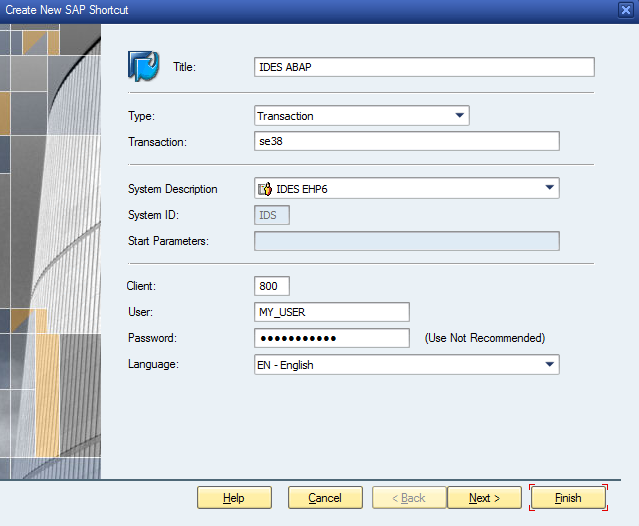
Sometimes, we need to access some frequent tcodes immediately. Therefore, you might want to create a shortcut in SAP GUI. However, keep in mind that your password will be saved in plain without any encryption in your Application Data.

If you do not even care about login SAP again since you might think that you already have secured and private computer in use, you can start make the shortcut by following these steps:

First of all, you need to setting change a bit of your SAP Register by adding
HKEY_CURRENT_USER  > Software > SAP > SAPShrotcut > Security > Create new string value EnablePassword and the value shoud be 1. (Create the key if there isn't any)


After that you can create a shortcut to your desktop

Or create a shortcut in your SAPLOGON
After that, fill in the SYSTEM, the client number, and your credential to auto-login, then click Finish.


Finally, you can test your shortcut to open your favorite transaction instantly.

Monday, March 13, 2017

Order of ABAP Events


Although there are subroutine that makes our code easier to maintain by modularize the program into modular units or logical blocks. There are some default blocks that help in controlling the flow of the program. These blocks are known as there are some ABAP events and they run in sequence.


LOAD-OF-PROGRAM
The first triggered event is load-of-program that runs before any other ABAP code. The purpose is to load the program into system memory so that the program can be executed. However, this event only available for program with the type of 1, M, F, or S.

INITIALIZATION.
Initialization will be the next event after Load-Of-Program. But, it will be the first triggered event if the program does not have load-of-program event. This event allow us to initialize values of variables or input fields of the selection screen.

AT SELECTION-SCREEN.
Before the selection screen is displayed, this event is usually called to validate done on selection screen. Moreover, it can be used to manipulate the actual screen in order to make a dynamic selection screen that can hide/disable some parameter by the use of loop at screen funcion.

START-OF-SELECTION.
This event is the first event that is triggered right after the user executes the program by pressing execute button (F8). It is before any GET events or any other event processing blocks. This will be started automatically when there is no other event keywords coded.

END-OF-SELECTION.
This event is triggered after all logical database records have been read or once the START-OF-SELECTION is finished. The purpose of this is generally only for the summary/results of reports.

TOP-OF-PAGE.
This event is used on basic list only in order to create a header.

END-OF-PAGE.
On the contrary, this event is used to create a footer.

AT LINE-SELECTION.
After the screen list has been displayed, the user can select on a list line by double click it or F2 to display a secondary list.

AT PFn (n is number between 01-24)
This is the event which is triggered by function key to perform interactive action.

AT USER-COMMAND.
This event triggered when toolbar button is pushed.


Source:
http://saptechsrs.blogspot.co.id/2011/10/abap-events-in-report-programming.html
http://loveabap.blogspot.co.id/2012/04/abap-flow-of-events-1.html
http://www.sapdev.co.uk/abap/abap-events.htm

Monday, February 13, 2017

ABAP Editor Keyboard Shortcuts

IconShortcut KeyUse
Enter keyEnter/Continue
Ctrl SSave
F3Back
Shift F3Exit System Task
F12Cancel
Ctrl PPrint
Ctrl FFind
Alt F12(PC only)Customize local layout
Ctrl GContinue Search
F1Help
Ctrl Page UpScroll to top of document
Page upScroll up one page

Thursday, February 9, 2017

Variable Naming Convention in ABAP

Here are some rules that I used for my convenience in coding ABAP. You can also have your own style in naming the variables in ABAP. These naming convention might help you remember and differentiate variables that you used, but keep in mind that you might need to follow a different naming convention in every project.

Variable TypeUsage
Global Varibles gv_<variablename>
d_<variablename>
Local Variable lv_<variablename>
ld_<variablename>
Global Internal Table it_<internaltablename>
gt_<internaltablename>
Local Internal Table lt_<internaltablename>
Global Work Area gw_<workareaname>
Local Work Area lw_<workareaname>
wa_<workareaname>
Constant c_<constantname>
Parameter p_<parametername>
Select_option s_<selectoptionname>
Ranges r_<rangename>
Type Structure ty_<structurename>
Subroutines F_<subroutinename>
FORM_<subroutinename>

Source: 

Friday, February 3, 2017

SAP Basic Operators, Keywords, Functions

Arithmetic Operators

Operator Using Operator Using Keyword
Less than a < b a LT B
Greater than a > b a GT b
Less than or equal a <= b a LE b
Greater than or equal a >= b a GE b
Equal a = b a EQ b
Not equal a <> b a NE b

Comparison Operators

Operator
Using Operator
Using Keyword
Addition
 p = n + m.
ADD n TO m.
Subtraction
 P = m – n.
SUBTRACT n FROM m.
Multiplication
 P = m * n.
MULTIPLY m BY n.
Division
 P = m / n.
DIVIDE m BY n.
Integer division
 P = m DIV n.
---
Remainder of division
 P = m MOD n.
---
Powers
 P = m ** n.

Logical Expressions

Expression Usage
AND (a<b) and (a<c)
OR (a<b) or (a<c)
NOT a NOT b
BETWEEN a BETWEEN b AND c
IS a IS (NULL/ASSIGNED/BOUND/INITIAL)

Numeric Data Types Functions

DATA

DATA n TYPE p DECIMALS 2.
DATA m TYPE p DECIMALS 2 VALUE '-5.55'.

Function Usage Output
ABS n = abs( m ).  WRITE:  'ABS: ', n. ABS: 5.55
SIGN n = sign( m ). WRITE: / 'SIGN: ', n. SIGN:  1.00-
CEIL n = ceil( m ). WRITE: / 'CEIL: ', n. CEIL:  5.00-
FLOOR n = floor( m ). WRITE: / 'FLOOR:', n. FLOOR: 6.00-
TRUNC n = trunc( m ). WRITE: / 'TRUNC:', n. TRUNC: 5.00-
FRAC n = frac( m ). WRITE: / 'FRAC: ', n. FRAC:  0.55-

Floating-Point Functions

Function Meaning
acos, asin, atan; cos, sin, tan Trigonometric functions.
cosh, sinh, tanh Hyperbolic functions.
exp Exponential function with base e (e=2.7182818285).
log Natural logarithm with base e.
log10 Logarithm with base 10.
sqrt Square root.


String Logical Expression

CO str1 only contains characters from <str2>;
CN  str1 contains characters not only from str2 (corresponds to NOT str1 CO str2);
CA  str1 contains at least one character from str2;
NA  str1 does not contain any characters from str2;
CS  str1 contains the string str2;
NS  str1 does not contain the string str2;
CP  str1 contains the pattern str2;
NP  str1 does not contain the pattern str2;

String Functions

DATA: title(15) TYPE c VALUE 'Mr',
surname(40) TYPE c VALUE 'Smith',
Forename(40) TYPE c VALUE 'Joe',
sep,  "an empty character by default"
Destination(200) TYPE c,
spaced_name TYPE STRING VALUE 'Joe Smith',
len TYPE i.

Function Usage Output
CONCATENATE DATAtitle(15TYPE c VALUE 'Mr',
      surname(40TYPE c VALUE 'Smith',
      forename(40TYPE c VALUE 'Joe',
      sep,  "an empty character by default"
      destination(200TYPE c.
CONCATENATE title surname forename INTO destination SEPARATED BY sep. Mr Smith Joe 
CONDENSE DATA spaced_name TYPE string VALUE 'Joe         Smith'.
CONDENSE spaced_name. Joe Smith
CONDENSE NO GAPS CONDENSE spaced_name NO-GAPS. JoeSmith
STRLEN DATA len TYPE i.
len strlensurname ).
WRITE / len.
strlen( surname ). 5
REPLACE REPLACE ' ' WITH '-' INTO destination. Mr-Smith Joe
REPLACE ' ' WITH '-' INTO destination. Mr-Smith-Joe
REPLACE ALL OCCURRENCES REPLACE ALL OCCURRENCES OF '-' IN destination WITH '+'. Mr+Smith+Joe
SEARCH destination 'Mr. Smith Joe'.
SEARCH destination for 'Joe   '. sy-fdpos 10
SEARCH destination for  '*ith'. sy-fdpos 4
SEARCH destination for 'John'. sy-subrc 4
SHIFT DATA empl_num TYPE STRING VALUE '0000654321'.
SHIFT empl_num"become 000654321 000654321
SHIFT DELETE LEADING empl_num '0000654321'.
SHIFT empl_num left deleting leading '0'"become 654321 654321
SHIFT CURCULAR empl_num '0000654321'.
SHIFT empl_num CIRCULAR. 0006543210
SPLIT DATA mystring TYPE string VALUE '1234** ACBD **6789'.
DATAa(10TYPE c,
      b(10TYPE c,
      c(10TYPE C, 1234 
      sep2(2TYPE c VALUE '**'. ABCD
SPLIT mystring AT sep2 INTO a b c. 6789
SUBFIELDS DATAint_tel_num(17TYPE c VALUE '+62-812345678',
      country_code(3TYPE c,
      tel_num(14TYPE c.
country_code int_tel_num(3). 62
tel_num int_tel_num+4(13). 812345678


Formatting String Functions

Function Description
LEFT-JUSTIFIED Specifies that the output is left-justified.
CENTERED Denotes that the output is centered.
RIGHT-JUSTIFIED Specifies that the output is right-justified.
UNDER <g> The output starts directly under the field <g>.
NO-GAP Specifies that the blank after field <f> is rejected.
USING EDIT MASK <m> Denotes the specification of the format template <m>. Using No EDIT Mask: This specifies that the format template specified in the ABAP Dictionary is deactivated.
NO-ZERO If a field contains only zeroes, then they are replaced by blanks.

Formatting Numeric Functions

FunctionDescription
NO-SIGN Specifies that no leading sign is displayed on the screen.
EXPONENT <e> Specifies that in type F (the floating point fields), the exponent is defined in <e>.
ROUND <r> The type P fields (packed numeric data types) are first multiplied by 10**(-r) and then rounded off to an integer value.
CURRENCY <c> Denotes that the formatting is done according to the currency <c> value that is stored in the TCURX database table.
UNIT <u> Specifies that the number of decimal places is fixed according to the <u> unit as specified in the T006 database table for type P.
DECIMALS <d> Specifies that the number of digits <d> must be displayed after the decimal point.