
Showing posts with label PROGRAM. Show all posts

Thursday, November 23, 2017

Send Message or Email to Internal or External User

In the previous post, I showed how to send a very simple message to another logged on user in SAP, hence if the user is not logged in, he/she will not get the message. Here I will introduce another function module known as SO_NEW_DOCUMENT_SEND_API1 to send email to internal SAP user or External user as an email.

REPORT  y_evan_email.

DATA : maildata TYPE sodocchgi1.
DATA : mailtxt TYPE TABLE OF solisti1 WITH HEADER LINE. " To store message
DATA : mailrec TYPE TABLE OF somlreci1 WITH HEADER LINE. "To store receiver

START-OF-SELECTION.
  CLEAR : maildata, mailtxt, mailrec.

  REFRESH:mailtxt, mailrec.

  maildata-obj_name = 'message1'.
  maildata-obj_descr = 'This is not urgent, just Testing'. "Subject
  maildata-obj_langu = sy-langu.

  mailtxt-line = 'Hello World, I am Message 1'.
  APPEND mailtxt.

  maildata-obj_name = 'message2'.
  maildata-obj_langu = sy-langu.

  mailtxt-line = 'And this is message 2'.
  APPEND mailtxt.

"Send to external
  mailrec-receiver = 'evan.christiawan@mail.co.id'.
*  mailrec-COPY = 'X'. "Set as CC
*  mailrec-BLIND_COPY = 'X'.  "Set as BCC
  mailrec-NOTIF_READ = 'X'.
  mailrec-rec_type = 'U'. "Use if it is an external mail
  APPEND mailrec.

"Send to internal
  mailrec-receiver = 'SOL_EVAN'.
*  mailrec-COPY = 'X'. "CC
*  mailrec-BLIND_COPY = 'X'.  "BCC
*  mailrec-NO_FORWARD = 'X'.
  mailrec-no_print = 'X'.
*  mailrec-to_answer = 'X'.
  mailrec-EXPRESS = 'X'. "Show pop up notification
  mailrec-NOTIF_READ = 'X'.
  APPEND mailrec.

  CALL FUNCTION 'SO_NEW_DOCUMENT_SEND_API1'
    EXPORTING
  document_data = maildata
  document_type = 'RAW'
  put_in_outbox = ' '
  commit_work = 'X'
*   IP_ENCRYPT                       =
*   IP_SIGN                          =
* IMPORTING
*   SENT_TO_ALL                      =
*   NEW_OBJECT_ID                    =
    TABLES
   OBJECT_HEADER                    = mailtxt
   OBJECT_CONTENT                   = mailtxt
*   CONTENTS_HEX                     =
*   OBJECT_PARA                      =
*   OBJECT_PARB                      =
      receivers                        = mailrec
   exceptions
     too_many_receivers               = 1
     document_not_sent                = 2
     document_type_not_exist          = 3
     operation_no_authorization       = 4
     parameter_error                  = 5
     x_error                          = 6
     enqueue_error                    = 7
     OTHERS                           = 8
            .
  IF sy-subrc <> 0.
    MESSAGE ID sy-msgid TYPE sy-msgty NUMBER sy-msgno
    WITH sy-msgv1 sy-msgv2 sy-msgv3 sy-msgv4.
  ENDIF.


The following sample program will create a message based on table mailtxt and will send it to the receiver referencing table mailrec. You can change the attribute of the receiver to set whether it is a CC or BCC, etc. But i will show the main difference for the internal and external receiver which is the rec_type attribute. This attribute need to be set as 'U' to tell SAP that the receiver is external.

Here is the Sample Output from the above code:

External / Email


Internal

- Get Notification if express attribute in the mailrec is checked

- Received the message on tcode SO01


Monday, May 1, 2017

Uploading XML File to SAP ABAP Internal Table

In the previous post I have share exporting or downloading SAP ABAP Internal Table to XML File, but how about the vice versa? Hence, i will explain it as well in 3 similar simple stages:

  1. Prepare your XML File
    For this example, i will use the following XML
  2. Create Transformation:
    
    <?xml version="1.0" encoding="utf-8"?>
    <ROOT>
    <purchase_doc>
    <purchase_no>6000000025</purchase_no>
    <item_no>00010</item_no>
    <changed_on>2015-02-05</changed_on'>
    <material_no>100-100</material_no>
    <stor_loc/>
    </purchase_doc>
    <purchase_doc>
    <purchase_no>6000000026</purchase_no>
    <item_no>00010</item_no>
    <changed_on>2015-02-05</changed_on>
    <material_no>100-100</material_no>
    <stor_loc/>
    </purchase_doc>
    </ROOT>


    1. Go to tcode STRANS or XLST_TOOL
    2. Create an X XSLT Program Transformation
    3. Copy and Modify the following source code as template
    4. <xsl:transform xmlns:xsl="http://www.w3.org/1999/XSL/Transform" xmlns:sap="http://www.sap.com/sapxsl" version="1.0">
        <xsl:output encoding="UTF-8indent="nomethod="xml" version="1.0"/>
        <xsl:strip-space elements="*"/>

        <!-- custom -->
        <xsl:template match="/">
          <asx:abap xmlns:asx="http://www.sap.com/abapxml" version="1.0">
            <asx:values>
              <IEKPO>
                <xsl:apply-templates select="//<purchase_doc>"/>
              </IEKPO>
            </asx:values>
          </asx:abap>
        </xsl:template>

        <xsl:template match="<purchase_doc>">
          <item>
            <EBELN>
              <xsl:value-of select="<purchase_no>"/>
            </EBELN>
            <EBELP>
              <xsl:value-of select="<item_on>"/>
            </EBELP>
            <AEDAT>
              <xsl:value-of select="<changed_on>"/>
            </AEDAT>
            <MATNR>
              <xsl:value-of select="<material_no>"/>
            </MATNR>
            <LGORT>
              <xsl:value-of select="<stor_loc>"/>
            </LGORT>
          </item>
        </xsl:template>
        <!--End Custom-->

      </xsl:transform>

  3. Complete your Program

    1. Create a Data Type/Structure/Table Type based on your XML File data
    2. Create the internal table in your ABAP Report
      DATA: it_out TYPE STANDARD TABLE OF <YOUR_DATA_TYPE>.
            wa_out TYPE <YOUR_DATA_TYPE>.
    3. Insert, modify and perform the following FORM.
    form F_XML_IMPORT .
    * Table for the XML content
    DATA: it_xml       TYPE STANDARD TABLE OF char2048.
    
    
    DATA: it_result_xml TYPE abap_trans_resbind_tab,
          wa_result_xml TYPE abap_trans_resbind.
    
    DATA: gs_rif_ex     TYPE REF TO cx_root,
          gs_var_text   TYPE string.
    
    * Set XML File Location
    DATA p_file_name type string.
    p_file_name = "Your_XML_File_Location".
    
    * Get the XML file
    CALL METHOD cl_gui_frontend_services=>gui_upload
      EXPORTING
        filename                = p_file_name
      CHANGING
        data_tab                = it_xml
      EXCEPTIONS
        file_open_error         = 1
        file_read_error         = 2
        no_batch                = 3
        gui_refuse_filetransfer = 4
        invalid_type            = 5
        no_authority            = 6
        unknown_error           = 7
        bad_data_format         = 8
        header_not_allowed      = 9
        separator_not_allowed   = 10
        header_too_long         = 11
        unknown_dp_error        = 12
        access_denied           = 13
        dp_out_of_memory        = 14
        disk_full               = 15
        dp_timeout              = 16
        not_supported_by_gui    = 17
        error_no_gui            = 18
        OTHERS                  = 19.
    
    IF sy-subrc <> 0.
      MESSAGE ID sy-msgid TYPE sy-msgty NUMBER sy-msgno
              WITH sy-msgv1 sy-msgv2 sy-msgv3 sy-msgv4.
    ENDIF.
    
    * Fill the result table with a reference to the data table.
    * Within the XSLT stylesheet, the data table can be accessed with
    * "IPERSON".
    
    GET REFERENCE OF it_out INTO wa_result_xml-value.
    wa_result_xml-name = 'IEKPO'.
    APPEND wa_result_xml TO it_result_xml.
    
    * Perform the XSLT stylesheet
    TRY.
        CALL TRANSFORMATION <YOUR_TRANSFORMATION_NAME>
        SOURCE XML it_xml
        RESULT (it_result_xml).
    
      CATCH cx_root INTO gs_rif_ex.
    
        gs_var_text = gs_rif_ex->get_text( ).
        MESSAGE gs_var_text TYPE 'E'.
    
    ENDTRY.
    endform.                    " F_XML_IMPORT


Tuesday, January 31, 2017

Simple Write Report in SAP

Preparation

Although I have posted my very first Hello World post, I haven't demonstrate any tutorial yet. Therefore, i will guide you to create your very first report Program at SAP with ABAP. First of all, you will need: - SAP GUI on your computer - Authenticated SAP account to access an SAP Server If you do not have an access to SAP, I am afraid you have to create your very own SAP Server known as SAP IDES (Internet Demonstration and Evaluation System) for the purpose of training and learning by following one of two tutorials here:

Where to Start?

Once you managed to logged on SAP System, you can start go to ABAP Editor with t-code SE38 in the command field at the top left of the SAP screen.


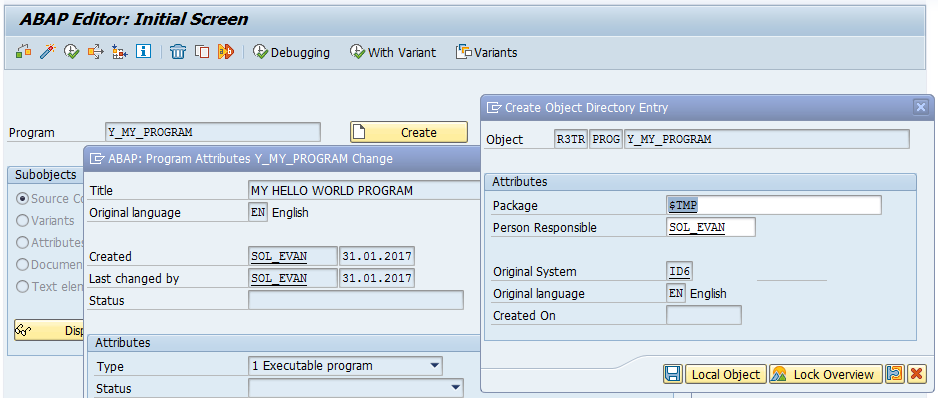
Type your program name starting with letter Y or Z (OBLIGATORY) like Y_MY_PROGRAM, then press Create Button and type the Program title and choose Executable Program as the type. After that save and choose $TMP (Local Object) as the package unless you need to transport this program.


PRINT, I mean WRITE


Once you are in ABAP Editor, you can start create your very first program in the next ABAP Editor Window, simply write these two lines of codes:


REPORT  y_my_program.
WRITE 'Hello World!'.
Once you are done, Press Direct Processing Button (F8) And voila, your Hello World! Report Program in SAP :D On any other language, you might end your programming statement with semicolon (;), in ABAP, you use dot (.) just like a sentence. You can write more words or variable in the write sentence using semicolon (:), it is used to input multiple data in many ABAP syntax like write.

Example:
WRITE: 'This', 'is' , 'my', 'first', 'program'.
This is the same like writing the following statements


WRITE 'This'.
WRITE 'is'.
WRITE 'my'.
WRITE 'first'.
WRITE 'program'.

Next Line Please


These statement will give the same exact result like this, continuing the previous Hello World, it seems that it gives a space to every word


To enter a new line you can use slash (/) in the write syntax.

WRITE / 'This is my second line'.

However, using slash seems too redundant to have some line spacing, hence you can use
SKIP [number of lines] to skip some lines.

SKIP 2.

Stick Your Notes

Another important thing to know is commenting in your ABAP code, you can use asterisk (*) to give a full commend in a line and double quote (") to give partial commend at the end of a statement. Last tips to do a block commenting, you can make the use of ctrl + (<) to comment and ctrl + (>) to uncomment.

*Write any bullshit in the line when there is an asterisk in the front 
WRITE 'End of my Hello World Report'. "This is the end

Compilation

To give the whole idea of this tutorial, please mind to look and try yourself compiled code below.

Source Code:

REPORT  y_my_program.

WRITE 'Hello World!'.

WRITE: 'This', 'is' , 'my', 'first', 'program'.

*Next line
WRITE / 'This is my second line'.

*Another method to make new line
SKIP 2.

*Write any bullshit in the line when there is an asterisk in the front
WRITE 'End of my Hello World Report'. "This is the end

*    _    ____    _    ____
*   / \  | __ )  / \  |  _ \  Block Comment
*  / _ \ |  _ \ / _ \ | |_) | Use CTRL + <
* / ___ \| |_) / ___ \|  __/  will automatically put asterisk
*/_/   \_\____/_/   \_\_|     in the front of the block

Result: