Wednesday, December 6, 2017

Spell Digit Numbers in Indonesia

There is a function module SPELL_AMOUNT that allow us to spell digit numbers in words, however cannot use it in other language other than english or denmark unless we maintain it.

To maintain it, we simply add data in tcode OBA9 and add the following data

ID
0
0
NOL ;
ID
0
1
SATU ;
ID
0
2
DUA ;
ID
0
3
TIGA ;
ID
0
4
EMPAT ;
ID
0
5
LIMA ;
ID
0
6
ENAM ;
ID
0
7
TUJUH ;
ID
0
8
DELAPAN ;
ID
0
9
SEMBILAN ;
ID
1
0
SEPULUH ;
ID
1
1
SEBELAS ;
ID
1
2
DUA BELAS ;
ID
1
3
TIGA BELAS ;
ID
1
4
EMPAT BELAS ;
ID
1
5
LIMA BELAS ;
ID
1
6
ENAM BELAS ;
ID
1
7
TUJUH BELAS ;
ID
1
8
DELAPAN BELAS ;
ID
1
9
SEMBILAN BELAS ;
ID
2
0
DUA PULUH ;
ID
2
1
DUA PULUH SATU ;
ID
2
2
DUA PULUH DUA ;
ID
2
3
DUA PULUH TIGA ;
ID
2
4
DUA PULUH EMPAT ;
ID
2
5
DUA PULUH LIMA ;
ID
2
6
DUA PULUH ENAM ;
ID
2
7
DUA PULUH TUJUH ;
ID
2
8
DUA PULUH DELAPAN ;
ID
2
9
DUA PULUH SEMBILAN ;
ID
3
0
TIGA PULUH ;
ID
3
1
TIGA PULUH SATU ;
ID
3
2
TIGA PULUH DUA ;
ID
3
3
TIGA PULUH TIGA ;
ID
3
4
TIGA PULUH EMPAT ;
ID
3
5
TIGA PULUH LIMA ;
ID
3
6
TIGA PULUH ENAM ;
ID
3
7
TIGA PULUH TUJUH ;
ID
3
8
TIGA PULUH DELAPAN ;
ID
3
9
TIGA PULUH SEMBILAN ;
ID
4
0
EMPAT PULUH ;
ID
4
1
EMPAT PULUH SATU ;
ID
4
2
EMPAT PULUH DUA ;
ID
4
3
EMPAT PULUH TIGA ;
ID
4
4
EMPAT PULUH EMPAT ;
ID
4
5
EMPAT PULUH LIMA ;
ID
4
6
EMPAT PULUH ENAM ;
ID
4
7
EMPAT PULUH TUJUH ;
ID
4
8
EMPAT PULUH DELAPAN ;
ID
4
9
EMPAT PULUH SEMBILAN ;
ID
5
0
LIMA PULUH ;
ID
5
1
LIMA PULUH SATU ;
ID
5
2
LIMA PULUH DUA ;
ID
5
3
LIMA PULUH TIGA ;
ID
5
4
LIMA PULUH EMPAT ;
ID
5
5
LIMA PULUH LIMA ;
ID
5
6
LIMA PULUH ENAM ;
ID
5
7
LIMA PULUH TUJUH ;
ID
5
8
LIMA PULUH DELAPAN ;
ID
5
9
LIMA PULUH SEMBILAN ;
ID
6
0
ENAM PULUH ;
ID
6
1
ENAM PULUH SATU ;
ID
6
2
ENAM PULUH DUA ;
ID
6
3
ENAM PULUH TIGA ;
ID
6
4
ENAM PULUH EMPAT ;
ID
6
5
ENAM PULUH LIMA ;
ID
6
6
ENAM PULUH ENAM ;
ID
6
7
ENAM PULUH TUJUH ;
ID
6
8
ENAM PULUH DELAPAN ;
ID
6
9
ENAM PULUH SEMBILAN ;
ID
7
0
TUJUH PULUH ;
ID
7
1
TUJUH PULUH SATU ;
ID
7
2
TUJUH PULUH DUA ;
ID
7
3
TUJUH PULUH TIGA ;
ID
7
4
TUJUH PULUH EMPAT ;
ID
7
5
TUJUH PULUH LIMA ;
ID
7
6
TUJUH PULUH ENAM ;
ID
7
7
TUJUH PULUH TUJUH ;
ID
7
8
TUJUH PULUH DELAPAN ;
ID
7
9
TUJUH PULUH SEMBILAN ;
ID
8
0
DELAPAN PULUH ;
ID
8
1
DELAPAN PULUH SATU ;
ID
8
2
DELAPAN PULUH DUA ;
ID
8
3
DELAPAN PULUH TIGA ;
ID
8
4
DELAPAN PULUH EMPAT ;
ID
8
5
DELAPAN PULUH LIMA ;
ID
8
6
DELAPAN PULUH ENAM ;
ID
8
7
DELAPAN PULUH TUJUH ;
ID
8
8
DELAPAN PULUH DELAPAN ;
ID
8
9
DELAPAN PULUH SEMBILAN ;
ID
9
0
SEMBILAN PULUH ;
ID
9
1
SEMBILAN PULUH SATU ;
ID
9
2
SEMBILAN PULUH DUA ;
ID
9
3
SEMBILAN PULUH TIGA ;
ID
9
4
SEMBILAN PULUH EMPAT ;
ID
9
5
SEMBILAN PULUH LIMA ;
ID
9
6
SEMBILAN PULUH ENAM ;
ID
9
7
SEMBILAN PULUH TUJUH ;
ID
9
8
SEMBILAN PULUH DELAPAN ;
ID
9
9
SEMBILAN PULUH SEMBILAN ;
ID
H
1
SERATUS ;
ID
H
2
DUA RATUS ;
ID
H
3
TIGA RATUS ;
ID
H
4
EMPAT RATUS ;
ID
H
5
LIMA RATUS ;
ID
H
6
ENAM RATUS ;
ID
H
7
TUJUH RATUS ;
ID
H
8
DELAPAN RATUS ;
ID
H
9
SEMBILAN RATUS ;
ID
K
1
SATU TRILIUN ;
ID
K
=
TRILIUN ;
ID
K
>
TRILIUN ;
ID
L
1
SATU MILYAR ;
ID
L
=
MILYAR ;
ID
L
>
MILYAR ;
ID
M
1
SATU JUTA ;
ID
M
=
JUTA ;
ID
M
>
JUTA ;
ID
T
1
SERIBU ;
ID
T
>
RIBU ;

Next, we can use the FM to our code.


CALL FUNCTION 'SPELL_AMOUNT'
EXPORTING
  amount   = gs_0100-total    " Amount/Number to Be Spelled Out
  currency = 'IDR'    " Currency for Amounts, Blank for Numbers
  filler   = space    " Filler for Padding the Output Field
  language = 'i'    " Language Indicator
IMPORTING
  in_words = v_in_words.    " Character String with Amount/Number Spelled Out


Thursday, November 23, 2017

Send Message or Email to Internal or External User

In the previous post, I showed how to send a very simple message to another logged on user in SAP, hence if the user is not logged in, he/she will not get the message. Here I will introduce another function module known as SO_NEW_DOCUMENT_SEND_API1 to send email to internal SAP user or External user as an email.

REPORT  y_evan_email.

DATA : maildata TYPE sodocchgi1.
DATA : mailtxt TYPE TABLE OF solisti1 WITH HEADER LINE. " To store message
DATA : mailrec TYPE TABLE OF somlreci1 WITH HEADER LINE. "To store receiver

START-OF-SELECTION.
  CLEAR : maildata, mailtxt, mailrec.

  REFRESH:mailtxt, mailrec.

  maildata-obj_name = 'message1'.
  maildata-obj_descr = 'This is not urgent, just Testing'. "Subject
  maildata-obj_langu = sy-langu.

  mailtxt-line = 'Hello World, I am Message 1'.
  APPEND mailtxt.

  maildata-obj_name = 'message2'.
  maildata-obj_langu = sy-langu.

  mailtxt-line = 'And this is message 2'.
  APPEND mailtxt.

"Send to external
  mailrec-receiver = 'evan.christiawan@mail.co.id'.
*  mailrec-COPY = 'X'. "Set as CC
*  mailrec-BLIND_COPY = 'X'.  "Set as BCC
  mailrec-NOTIF_READ = 'X'.
  mailrec-rec_type = 'U'. "Use if it is an external mail
  APPEND mailrec.

"Send to internal
  mailrec-receiver = 'SOL_EVAN'.
*  mailrec-COPY = 'X'. "CC
*  mailrec-BLIND_COPY = 'X'.  "BCC
*  mailrec-NO_FORWARD = 'X'.
  mailrec-no_print = 'X'.
*  mailrec-to_answer = 'X'.
  mailrec-EXPRESS = 'X'. "Show pop up notification
  mailrec-NOTIF_READ = 'X'.
  APPEND mailrec.

  CALL FUNCTION 'SO_NEW_DOCUMENT_SEND_API1'
    EXPORTING
  document_data = maildata
  document_type = 'RAW'
  put_in_outbox = ' '
  commit_work = 'X'
*   IP_ENCRYPT                       =
*   IP_SIGN                          =
* IMPORTING
*   SENT_TO_ALL                      =
*   NEW_OBJECT_ID                    =
    TABLES
   OBJECT_HEADER                    = mailtxt
   OBJECT_CONTENT                   = mailtxt
*   CONTENTS_HEX                     =
*   OBJECT_PARA                      =
*   OBJECT_PARB                      =
      receivers                        = mailrec
   exceptions
     too_many_receivers               = 1
     document_not_sent                = 2
     document_type_not_exist          = 3
     operation_no_authorization       = 4
     parameter_error                  = 5
     x_error                          = 6
     enqueue_error                    = 7
     OTHERS                           = 8
            .
  IF sy-subrc <> 0.
    MESSAGE ID sy-msgid TYPE sy-msgty NUMBER sy-msgno
    WITH sy-msgv1 sy-msgv2 sy-msgv3 sy-msgv4.
  ENDIF.


The following sample program will create a message based on table mailtxt and will send it to the receiver referencing table mailrec. You can change the attribute of the receiver to set whether it is a CC or BCC, etc. But i will show the main difference for the internal and external receiver which is the rec_type attribute. This attribute need to be set as 'U' to tell SAP that the receiver is external.

Here is the Sample Output from the above code:

External / Email


Internal

- Get Notification if express attribute in the mailrec is checked

- Received the message on tcode SO01


Send Popup Message to Other User in SAP

In this post, i will show 1 FM that might be useful for us in SAP to Send a simple Popup Message to Another Logged on User in SAP.
  1. Function Module 'th_popup' in SE37
  2. Fill in the Client, Receiver User, and the Message
  3. Execute (F8)

Monday, May 1, 2017

Uploading XML File to SAP ABAP Internal Table

In the previous post I have share exporting or downloading SAP ABAP Internal Table to XML File, but how about the vice versa? Hence, i will explain it as well in 3 similar simple stages:

  1. Prepare your XML File
    For this example, i will use the following XML
  2. Create Transformation:
    
    <?xml version="1.0" encoding="utf-8"?>
    <ROOT>
    <purchase_doc>
    <purchase_no>6000000025</purchase_no>
    <item_no>00010</item_no>
    <changed_on>2015-02-05</changed_on'>
    <material_no>100-100</material_no>
    <stor_loc/>
    </purchase_doc>
    <purchase_doc>
    <purchase_no>6000000026</purchase_no>
    <item_no>00010</item_no>
    <changed_on>2015-02-05</changed_on>
    <material_no>100-100</material_no>
    <stor_loc/>
    </purchase_doc>
    </ROOT>


    1. Go to tcode STRANS or XLST_TOOL
    2. Create an X XSLT Program Transformation
    3. Copy and Modify the following source code as template
    4. <xsl:transform xmlns:xsl="http://www.w3.org/1999/XSL/Transform" xmlns:sap="http://www.sap.com/sapxsl" version="1.0">
        <xsl:output encoding="UTF-8indent="nomethod="xml" version="1.0"/>
        <xsl:strip-space elements="*"/>

        <!-- custom -->
        <xsl:template match="/">
          <asx:abap xmlns:asx="http://www.sap.com/abapxml" version="1.0">
            <asx:values>
              <IEKPO>
                <xsl:apply-templates select="//<purchase_doc>"/>
              </IEKPO>
            </asx:values>
          </asx:abap>
        </xsl:template>

        <xsl:template match="<purchase_doc>">
          <item>
            <EBELN>
              <xsl:value-of select="<purchase_no>"/>
            </EBELN>
            <EBELP>
              <xsl:value-of select="<item_on>"/>
            </EBELP>
            <AEDAT>
              <xsl:value-of select="<changed_on>"/>
            </AEDAT>
            <MATNR>
              <xsl:value-of select="<material_no>"/>
            </MATNR>
            <LGORT>
              <xsl:value-of select="<stor_loc>"/>
            </LGORT>
          </item>
        </xsl:template>
        <!--End Custom-->

      </xsl:transform>

  3. Complete your Program

    1. Create a Data Type/Structure/Table Type based on your XML File data
    2. Create the internal table in your ABAP Report
      DATA: it_out TYPE STANDARD TABLE OF <YOUR_DATA_TYPE>.
            wa_out TYPE <YOUR_DATA_TYPE>.
    3. Insert, modify and perform the following FORM.
    form F_XML_IMPORT .
    * Table for the XML content
    DATA: it_xml       TYPE STANDARD TABLE OF char2048.
    
    
    DATA: it_result_xml TYPE abap_trans_resbind_tab,
          wa_result_xml TYPE abap_trans_resbind.
    
    DATA: gs_rif_ex     TYPE REF TO cx_root,
          gs_var_text   TYPE string.
    
    * Set XML File Location
    DATA p_file_name type string.
    p_file_name = "Your_XML_File_Location".
    
    * Get the XML file
    CALL METHOD cl_gui_frontend_services=>gui_upload
      EXPORTING
        filename                = p_file_name
      CHANGING
        data_tab                = it_xml
      EXCEPTIONS
        file_open_error         = 1
        file_read_error         = 2
        no_batch                = 3
        gui_refuse_filetransfer = 4
        invalid_type            = 5
        no_authority            = 6
        unknown_error           = 7
        bad_data_format         = 8
        header_not_allowed      = 9
        separator_not_allowed   = 10
        header_too_long         = 11
        unknown_dp_error        = 12
        access_denied           = 13
        dp_out_of_memory        = 14
        disk_full               = 15
        dp_timeout              = 16
        not_supported_by_gui    = 17
        error_no_gui            = 18
        OTHERS                  = 19.
    
    IF sy-subrc <> 0.
      MESSAGE ID sy-msgid TYPE sy-msgty NUMBER sy-msgno
              WITH sy-msgv1 sy-msgv2 sy-msgv3 sy-msgv4.
    ENDIF.
    
    * Fill the result table with a reference to the data table.
    * Within the XSLT stylesheet, the data table can be accessed with
    * "IPERSON".
    
    GET REFERENCE OF it_out INTO wa_result_xml-value.
    wa_result_xml-name = 'IEKPO'.
    APPEND wa_result_xml TO it_result_xml.
    
    * Perform the XSLT stylesheet
    TRY.
        CALL TRANSFORMATION <YOUR_TRANSFORMATION_NAME>
        SOURCE XML it_xml
        RESULT (it_result_xml).
    
      CATCH cx_root INTO gs_rif_ex.
    
        gs_var_text = gs_rif_ex->get_text( ).
        MESSAGE gs_var_text TYPE 'E'.
    
    ENDTRY.
    endform.                    " F_XML_IMPORT


Thursday, April 27, 2017

Export / Download SAP ABAP Internal Table to XML

Hello, in this tutorial I will share on of way to export or download your internal table into XML file by the help of XML Transformations. There are 3 stages in the procedure which are:

  1. Create Table Type:
    1. Go to SE11.
    2. Create a structure of your internal table
    3. Create a table type based on the structure
    4.  Make Sure to save and activate them
  2. Create Transformation:
    1. Go to tcode STRANS or XSLT_TOOL
    2. Create an S Simple Transformation
    3. Click the sparkling magic wand button a.k.a Edit Simple Transformation Graphically (Ctrl+Shift+F11)
    4. Insert New Root in Data Roots
    5. Fill in any root name of the xml for Root-Name and <Table_Type> created in first stage for Type-Name
    6. Then drag the data root into Simple Transformation
    7. You might want to change the Field name in the XML by double click the element
    8. You can make the field into an attribute.
    9. Save Activate the transformation
  3. Complete your Program:
    1. Make sure you already have the particular internal table filled with data
    2. Prepare the output location
    3. Insert, modify and perform the following FORM.
FORM f_xml_export.
  DATA: lo_xml_doc TYPE ref TO CL_XML_DOCUMENT,
        lv_string TYPE string,
        lv_file TYPE string.

  CHECK <YOUR_INTERNAL_TABLE>[] IS NOT INITIAL.

*File path
  lv_file = '<YOUR_FILE_PATH>'.

*Transform internal table to XML DOM
  CALL TRANSFORMATION <YOUR_TRANSFORMATION_NAME>
  SOURCE <YOUR_ROOT_NAME> = <YOUR_INTERNAL_TABLE[]
  RESULT XML lv_string.

CREATE OBJECT lo_xml_doc.
lo_xml_doc->parse_string( lv_string ).
* Render To XML Table
data it_xml TYPE DCXMLLINES.
CALL FUNCTION 'SDIXML_DOM_TO_XML'
  EXPORTING
    document            = lo_xml_doc->m_document
   PRETTY_PRINT        = 'X'
* IMPORTING
*   XML_AS_STRING       =
*   SIZE                =
 TABLES
   XML_AS_TABLE        = it_xml
* EXCEPTIONS
*   NO_DOCUMENT         = 1
*   OTHERS              = 2
          .
IF sy-subrc <> 0.
MESSAGE ID SY-MSGID TYPE SY-MSGTY NUMBER SY-MSGNO
         WITH SY-MSGV1 SY-MSGV2 SY-MSGV3 SY-MSGV4.
ENDIF.


  CALL FUNCTION 'GUI_DOWNLOAD'
    EXPORTING
      filename     = lv_file
      filetype     = 'BIN'
    TABLES
      data_tab     = it_xml
    EXCEPTIONS
      OTHERS       = 1.
IF sy-subrc <> 0.
MESSAGE ID SY-MSGID TYPE SY-MSGTY NUMBER SY-MSGNO
         WITH SY-MSGV1 SY-MSGV2 SY-MSGV3 SY-MSGV4.
ENDIF.
ENDFORM.                    " F_XML_EXPORT

Sunday, April 16, 2017

Auto Login SAP

Sometimes, we need to access some frequent tcodes immediately. Therefore, you might want to create a shortcut in SAP GUI. However, keep in mind that your password will be saved in plain without any encryption in your Application Data.

If you do not even care about login SAP again since you might think that you already have secured and private computer in use, you can start make the shortcut by following these steps:

First of all, you need to setting change a bit of your SAP Register by adding
HKEY_CURRENT_USER  > Software > SAP > SAPShrotcut > Security > Create new string value EnablePassword and the value shoud be 1. (Create the key if there isn't any)


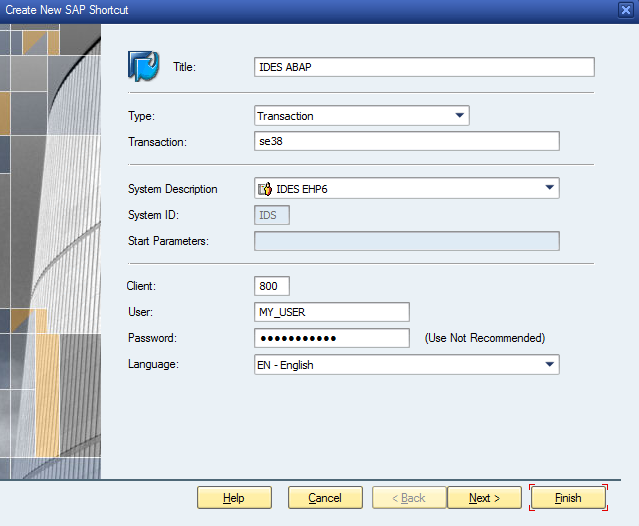
After that you can create a shortcut to your desktop

Or create a shortcut in your SAPLOGON
After that, fill in the SYSTEM, the client number, and your credential to auto-login, then click Finish.


Finally, you can test your shortcut to open your favorite transaction instantly.